 Numnote
How to make a calculator for a website
This guide shows step by step how to build a calculator with your own formula in the builder, how to put it on your site and what the visitor will see. No coding is needed.
Builder
On the left you build the formula, on the right you see the finished calculator and its code. The screenshots use one example: length times width.
-
Type in the formula
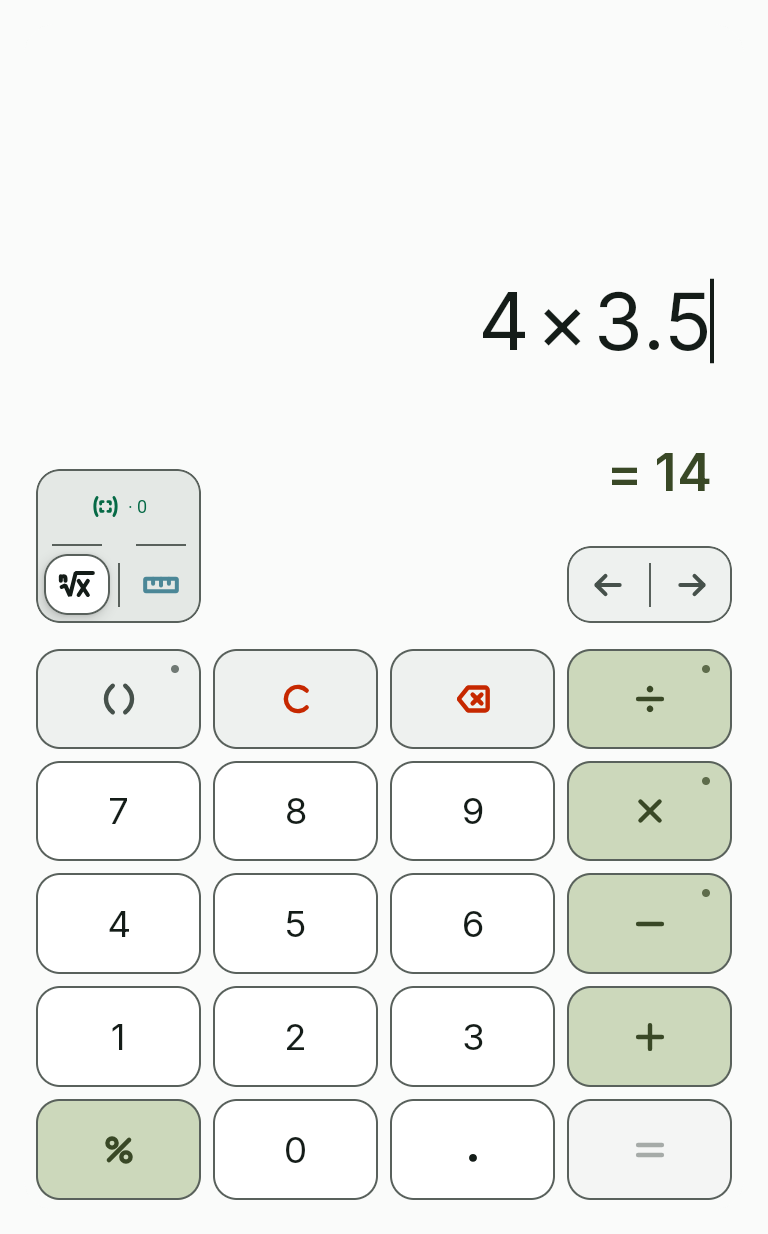
Type the expression on the builder's keys or the computer keyboard, for example 4 × 3.5. Hold the key with the point to see the other options.
-
Mark the parameters
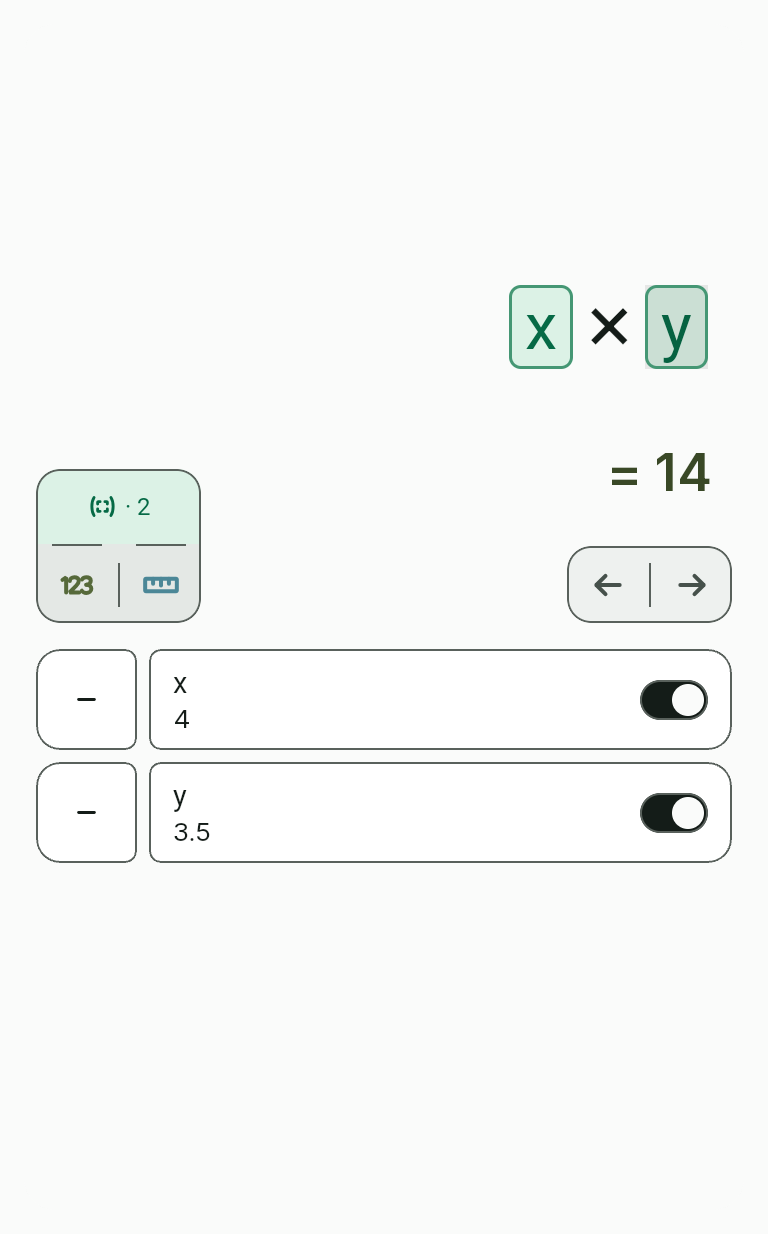
Tap the parameters button above the keys: the numbers in the formula get a dashed outline. Tap a number and it becomes a parameter, a calculator field where the visitor types their own number. A number you don't tap stays constant in the formula.
-
Set the units
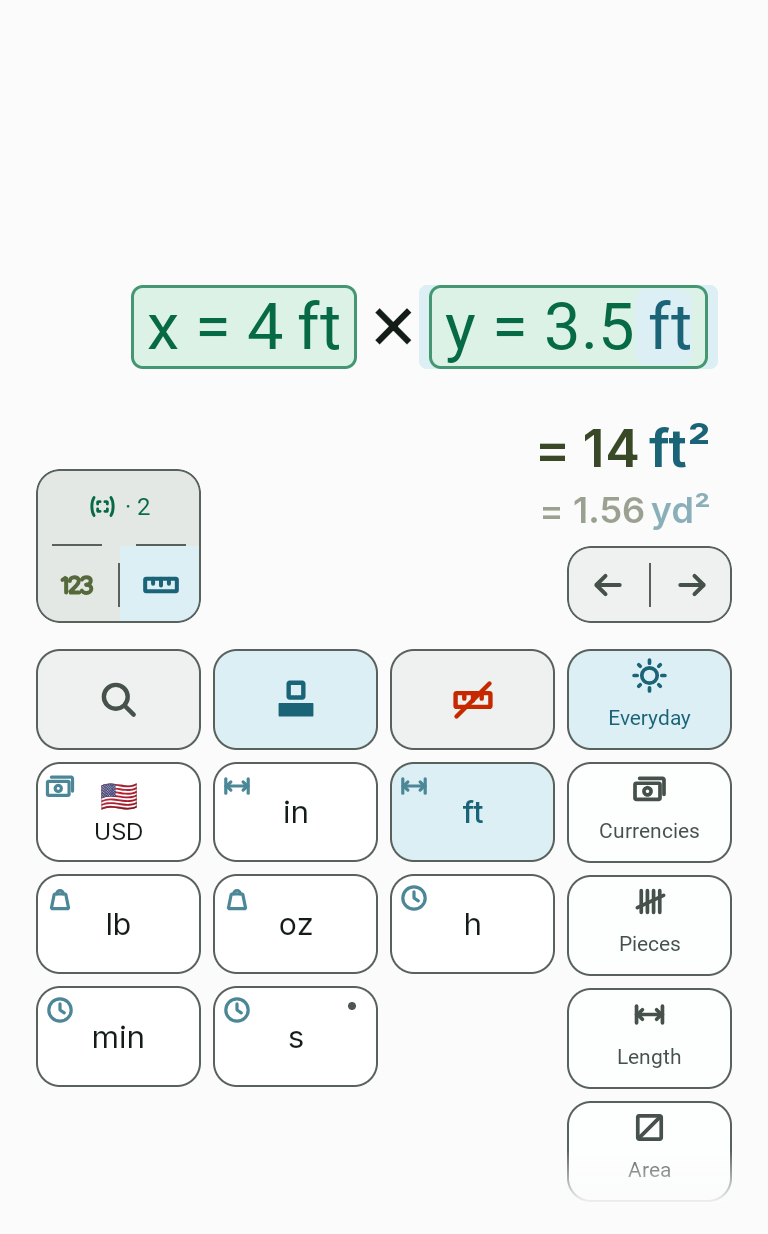
Tap the button with the ruler, tap a parameter and choose its unit on the units keyboard. The unit isn't typed into the formula. Tap the result to convert it to another unit.
-
Name the result
In the field “Result name” write what the calculator computes, for example “area”. This name is shown above the result.

-
Label the fields
Each parameter is listed in the table. “Name” labels the field, “Hint” adds a short explanation to it, “Width” sets how many columns the field takes.

-
Set up the appearance
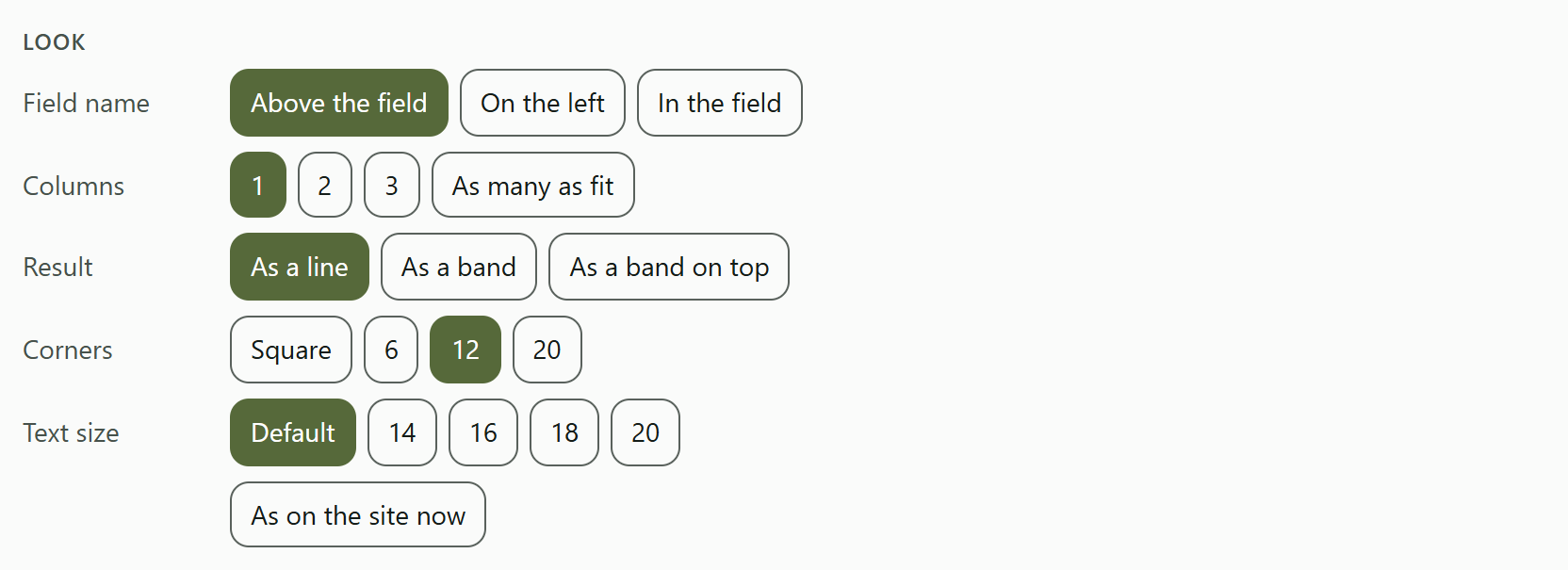
The “Appearance” panel sets where the field name sits, the number of columns, how the result looks, the corners and the text size. The button “As on the site now” restores the initial look.
-
Check the calculator
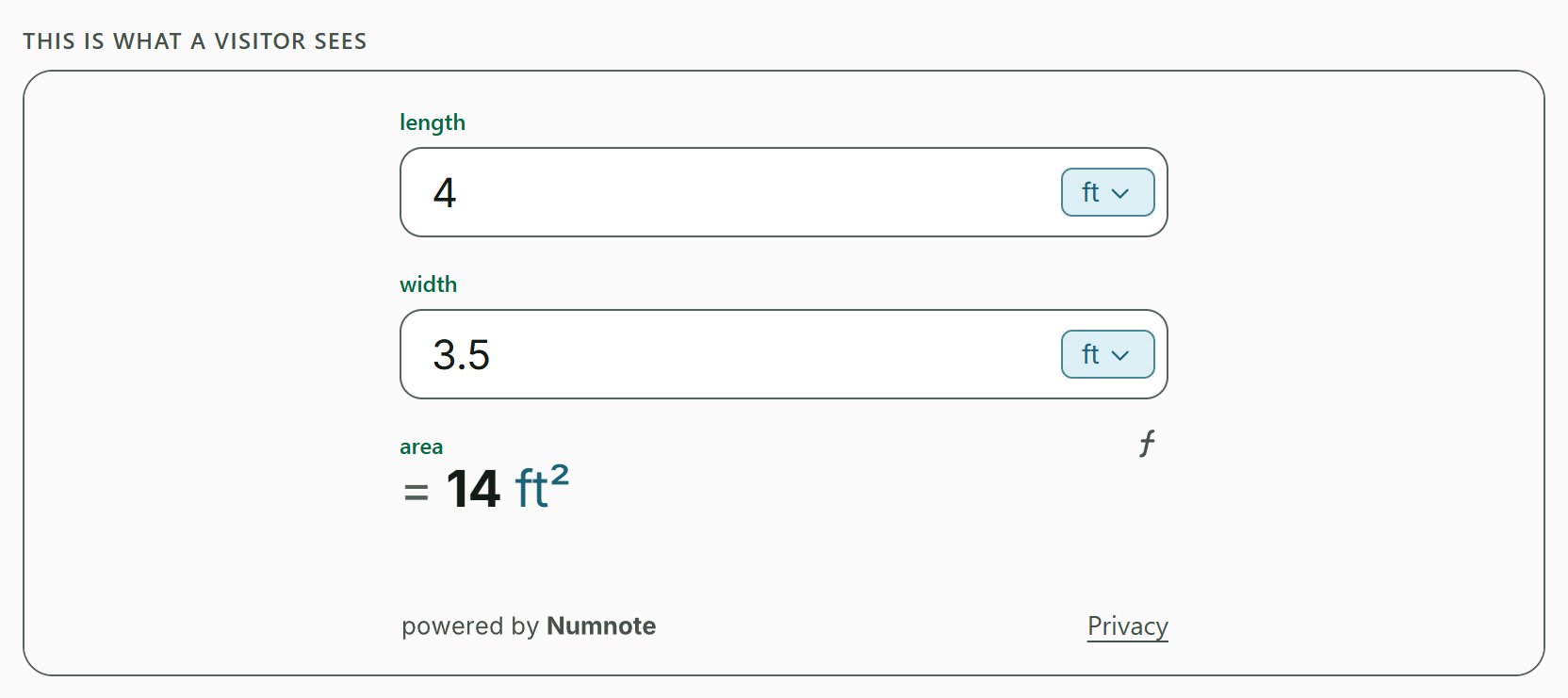
Under the caption “This is what the visitor will see” there is a real working calculator. It changes after every key, so you can compute in it right away.
-
Copy the code
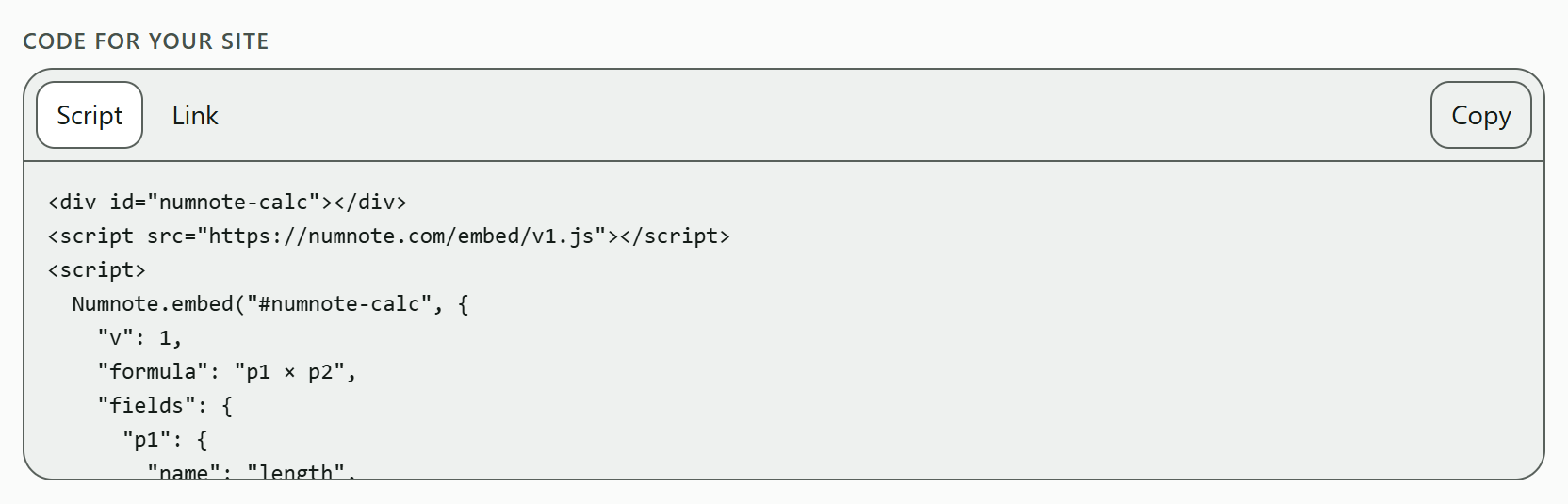
The “Script” option picks the calculator's height by itself. The “Link” option is one line without scripts, with the height written as a number. Tap “Copy” and paste the code into your page's HTML.
-
Save the code
The builder saves nothing. If you close the page, you will have to type the formula again, so keep the copied code yourself.
If the formula is unfinished or uses a function the website calculator can't run yet, a sentence giving the reason appears where the calculator should be. Fix the formula and the calculator comes back.
The calculator on your website
This is how the calculator works for a visitor to your page.
- Fields
The visitor types their numbers into the fields. The result changes at once; there is no “calculate” button.
- Units
A button next to a field and next to the result opens a list of units. The visitor chooses theirs and the calculator converts by itself.
- Formula
The formula button above the result shows which formula the calculator uses.
- Number format
The decimal comma or point and the thousands grouping follow the region you took the code for.
- Size
The calculator takes the full width of the place where you pasted it. On a narrow screen the fields stack one under another.
- What is always there
At the bottom there is the text “powered by Numnote” and links to the legal pages. The numbers entered never leave the visitor's browser.